Navigating where to install Steam games effectively is crucial for every PC gamer, especially with today's massive game file sizes. This guide provides comprehensive information and practical tips for managing your Steam library across various drives. Discover how to change default installation locations, utilize external hard drives for expanded storage, and optimize performance by understanding the benefits of SSDs versus HDDs. For the average US gamer, balancing a career, family, and a passion for gaming means every minute and every megabyte counts. Learn to avoid common setup issues and improve loading times, ensuring your gaming sessions are smooth and enjoyable. We will cover everything from initial setup to advanced library management, helping you stay current with gaming trends without constant hardware upgrades or performance headaches. Whether you are looking to free up space, organize your games better, or simply ensure optimal performance for the latest titles, this resource offers clear, actionable advice to enhance your Steam experience. Embrace smart storage solutions and get back to what you love most playing your favorite games without frustration.
Hey fellow gamers! If you are anything like the average US gamer today, you are likely balancing work, family, and life while still trying to squeeze in those precious gaming hours. You love the escape, the challenge, and the social connections gaming brings. But let's be real the never-ending stream of massive game updates and new titles can make managing your PC's storage feel like a boss battle in itself. Finding the best place where to install Steam games is more than just picking a drive; it is about optimizing your entire gaming experience, saving time, and avoiding frustrating performance issues. With 87 percent of US gamers regularly playing, averaging over 10 hours a week, and game sizes ballooning, smart installation choices are more vital than ever.
You might be wondering, where do my games even go by default? Or how can I make sure my favorite new release loads lightning-fast without clogging up my main drive? Maybe you are eyeing an external drive for your ever-growing collection, or perhaps you are just tired of constantly uninstalling games to make room. These are common pain points for busy gamers who value efficiency and seamless play. This comprehensive guide is designed to be your trusted friend in navigating Steam's installation options, offering practical, no-nonsense advice to help you manage your game library like a pro. We will tackle everything from default settings to advanced multi-drive strategies, ensuring your gaming setup is optimized for fun, performance, and peace of mind.
Where Do Steam Games Install by Default?
When you first install Steam and download a game, it typically goes to a default location on your primary hard drive, usually your C drive. This path is almost always CProgram Files x86Steamsteamappscommon. This is where Steam creates its main library folder unless you specify otherwise during the initial Steam installation or create additional library folders later. For many gamers, especially those with smaller primary drives, this default location can quickly become a bottleneck, eating up valuable space needed for your operating system and other essential applications. Over time, this can lead to slower PC performance, not just in games, but across your entire system. Understanding this default is the first step towards taking control of your game storage.
Why Should I Change My Steam Game Installation Location?
There are several compelling reasons why you should consider changing where to install Steam games, especially if you are a dedicated gamer balancing life's demands. Performance is a huge factor a Solid State Drive SSD offers significantly faster loading times compared to a traditional Hard Disk Drive HDD. Installing frequently played games on an SSD can drastically reduce wait times, getting you into the action quicker. Storage management is another key reason. Modern games are massive; a single AAA title can easily consume 100GB or more. Keeping all your games on your primary C drive can quickly fill it up, leading to system slowdowns and making it harder to manage other files. By moving games to a separate drive, you free up space on your main system drive, ensuring smoother overall PC operation. Finally, flexibility and organization are important. With multiple Steam Library Folders, you can categorize games or prioritize which ones get the premium SSD space, making your game collection easier to navigate and manage.
How Do I Change the Default Steam Game Installation Folder?
Changing your default Steam game installation folder is a straightforward process, but it requires creating a new Steam Library Folder first. This is crucial for controlling where to install Steam games going forward. Here is how you do it:
- Open Steam and navigate to Steam Settings.
- In the Settings window, select the Downloads tab.
- Click on the Steam Library Folders button. This will open the Storage Manager.
- In the Storage Manager, you will see a list of your current Steam Library Folders. To add a new one, click the plus button.
- Choose the drive and specific folder where you want to create your new library. It is often best to create a dedicated folder like GDrivesSteamLibrary or DSteamGames.
- Once selected, click Add to create the new library folder.
- You can now set this new folder as your default by right-clicking on it in the Storage Manager and selecting Make Default.
From now on, whenever you download a new game, Steam will automatically suggest this new default location. This simple change gives you much more control over your storage and helps prevent your primary drive from getting overwhelmed by game files.
Can I Install Steam Games on an External Hard Drive?
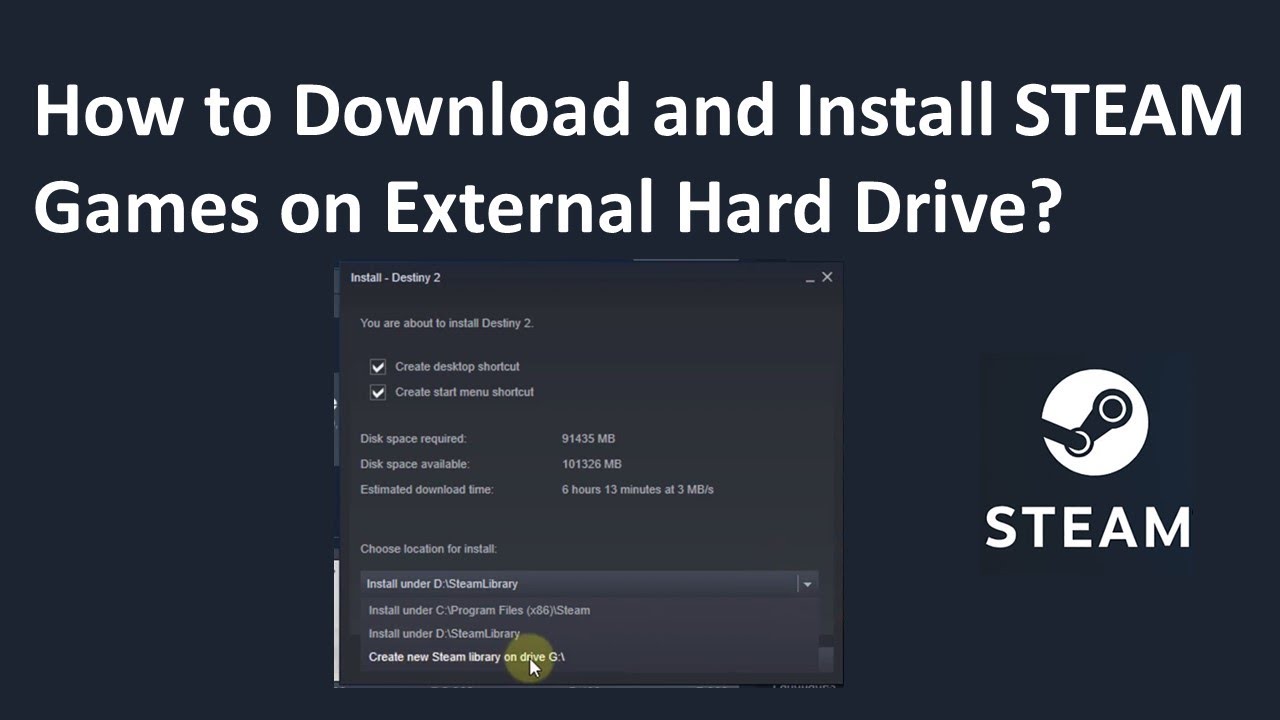
Absolutely, installing Steam games on an external hard drive is a popular and practical solution for many gamers, particularly those with laptops or limited internal storage. It provides immense flexibility and expandability. You can carry your game library with you, connect it to different PCs running Steam, and easily expand your storage without opening your computer. However, there are some considerations. The performance of an external drive depends heavily on its connection type. A USB 3.0 or USB 3.1 connection offers decent speeds, but older USB 2.0 will be noticeably slower, impacting game loading times and sometimes even in-game performance. Additionally, external drives are generally more susceptible to physical damage if dropped or mishandled, so treat them with care. For casual games or titles where lightning-fast loading isn't critical, an external HDD can be a perfect solution to expand where to install Steam games, but for competitive or graphically intensive games, an internal SSD remains superior.
What's the Best Drive Type for Steam Games SSD vs HDD?
The choice between an SSD Solid State Drive and an HDD Hard Disk Drive for where to install Steam games heavily impacts your gaming experience. For the ultimate performance, an SSD is the undisputed champion. SSDs use flash memory, resulting in incredibly fast read and write speeds, which translates to significantly shorter game loading times, faster texture streaming, and smoother overall gameplay. If you are playing competitive titles, large open-world games, or anything where quick responsiveness is key, an SSD is a must-have. Current trends show more gamers are prioritizing SSDs for their primary gaming drive.
HDDs, on the other hand, offer a much lower cost per gigabyte, making them excellent for mass storage. They are perfect for archiving older games, titles you play less frequently, or games where loading times are not a major concern. Many gamers adopt a hybrid approach: installing their operating system and frequently played, performance-critical games on a fast SSD, while using a larger, more affordable HDD for the rest of their extensive Steam library. This balance allows for optimal performance where it counts, without breaking the bank on storage.
How Do I Move Existing Steam Games to a New Drive or Folder?
Moving existing Steam games to a new drive or folder is a common task, especially when upgrading your storage or reorganizing your library. Thankfully, Steam makes this process relatively simple. Here is a step-by-step guide:
- Open Steam and go to Steam Settings.
- Click on the Downloads tab, then select Steam Library Folders.
- In the Storage Manager, identify the game you want to move.
- Select the game, and then click the Move button at the bottom of the window.
- A dialog box will appear, allowing you to choose the destination Steam Library Folder from a dropdown menu. Make sure you have already created the desired destination folder if it is new.
- Click Move again to start the transfer. Steam will then move all the game files to the new location.
This method ensures all game files and associated data are correctly transferred, preventing broken installations. It is a fantastic way to quickly reorganize where to install Steam games without having to re-download entire titles, which can save you hours, especially with current internet speeds and game sizes. Remember, while the process is ongoing, avoid interrupting it to prevent data corruption.
How Can I Manage Multiple Steam Library Folders Effectively?
Managing multiple Steam Library Folders is key for any gamer with a growing collection and different types of storage drives. Think of it as having different shelves for different books. Here are some tips for effective management:
- Prioritize Drives: Install your most-played, performance-critical games on your fastest SSD. Use an HDD or external drive for larger, less frequently accessed games or those that do not demand super-fast loading.
- Categorize Games: Create folders for specific types of games. For example, 'SSD Library' for competitive online games, 'HDD Library' for single-player RPGs, and 'External Drive' for indie games or older titles.
- Regularly Review: Periodically check your Steam Library Folders via the Storage Manager. Uninstall games you no longer play, or move them to archive drives if you might revisit them later.
- Use Steam's Tools: The Steam Storage Manager not only lets you move games but also easily see how much space each library folder is using and which games are taking up the most room. This visibility is crucial for making informed decisions about where to install Steam games.
By actively managing your library folders, you maintain optimal performance, keep your system tidy, and ensure you always have space for that next big title without stress.
What Are the Common Issues When Changing Steam Install Locations?
While changing where to install Steam games is usually smooth, you might encounter a few common hiccups. Understanding these can help you troubleshoot quickly:
- Game Not Launching: After moving a game, Steam might occasionally lose track of its location. This often results in a 'missing executable' error. The fix is usually to verify the integrity of game files through Steam (right-click game, Properties, Local Files, Verify integrity of game files). Steam will then re-scan the library folders and relink the game.
- Permissions Issues: If you try to create a Steam Library Folder in a restricted directory or on a drive with incorrect permissions, Steam might throw an error. Ensure you have full read/write access to the destination folder. Running Steam as an administrator can sometimes help, but it is better to fix the underlying permission issues.
- Drive Disconnects: For external drives, ensure the drive is always connected and recognized by Windows before launching Steam. If the drive disconnects mid-game or during an update, it can corrupt game files or cause Steam to forget its location.
- Insufficient Space Errors: Even if you have selected a new drive, sometimes the temporary download files might still try to use the default C drive space. Ensure both your primary drive (for temporary files) and your target drive have ample space before initiating large downloads.
Most issues are resolvable with a quick search or by using Steam's built-in verification tools. Patience and systematic troubleshooting are your best friends here.
How Does Game Installation Location Impact Performance for Busy Gamers?
For gamers balancing jobs, families, and limited free time, performance is paramount. Lag, slow loading screens, and stuttering are not just annoying they eat into your precious gaming minutes. Where to install Steam games directly impacts these factors. Installing games on an SSD significantly reduces load times, often cutting them by more than half compared to an HDD. This means less waiting and more playing, crucial when you only have an hour or two to unwind. Furthermore, faster drives can improve texture streaming in open-world games, leading to a smoother visual experience and reducing in-game stutters. While an average gamer may not notice a few milliseconds difference, consistent fast performance ensures that when you finally get to sit down and game, your experience is fluid and immersive, allowing you to relax and enjoy without technical frustrations. This focus on performance optimization provides value for money from your hardware and maximizes your enjoyment within your busy schedule.
Are There Any Cloud or Network Options for Steam Game Storage?
While Steam itself does not offer direct cloud storage for your entire game *installations* (meaning, the actual game files you play from), it does leverage cloud technology for game *saves* and *settings*. Steam Cloud automatically syncs your game progress, configurations, and other small data bits across different PCs, which is incredibly convenient. So, even if you uninstall a game or play on a different machine, your progress is safe. For the actual game files themselves, which are often hundreds of gigabytes, true cloud streaming or network-attached storage NAS for direct play is less common for the average user due to internet bandwidth requirements and latency. Some advanced users might set up a local NAS for archiving rarely played games, but playing directly from a NAS can introduce network lag, making it unsuitable for most modern titles. For now, the most practical solution for where to install Steam games remains physical drives, whether internal SSDs/HDDs or external drives, coupled with Steam Cloud for save data.
You are now equipped with the knowledge to conquer your Steam game storage challenges! By strategically choosing where to install Steam games, managing your library folders, and understanding the nuances of different drive types, you can optimize your gaming setup for peak performance and convenience. No more endless waiting screens or agonizing over which game to delete. Take control, streamline your experience, and get back to enjoying your games the way they were meant to be played. Remember, smart storage is smart gaming.
What's your biggest gaming challenge when it comes to storage? Comment below!
FAQ Section
Q: Can I have Steam games installed on multiple drives simultaneously?
A: Yes, Steam fully supports multiple Steam Library Folders across different drives. You can create a new library folder on any connected internal or external drive, allowing you to spread your games across various storage devices for better management and performance.
Q: Will moving Steam games affect my save files or achievements?
A: No, moving Steam games using Steam's built-in 'Move' function will not affect your save files or achievements. Your save data is typically stored in your Documents folder or within Steam Cloud, separate from the game installation files. Steam ensures proper re-linking when games are moved.
Q: Is it safe to delete the default C drive Steam folder after moving all games?
A: While you can delete the 'steamappscommon' folder from your C drive if it is empty after moving all games, you should never delete the core Steam client installation folder unless you intend to completely uninstall Steam. The client itself needs to reside somewhere to function.
Q: How do I recover a game that Steam says is not installed but is on my drive?
A: If Steam reports a game as uninstalled but the files are present, go to Steam Settings Downloads Steam Library Folders, and click on the desired library folder. You can usually click 'Add Folder' to ensure Steam recognizes the directory, or 'Repair Folder' if available. Then, go to the game in your library and click 'Install'. Steam should discover the existing files instead of re-downloading.
What is the best way to determine where to install Steam games for optimal performance?
The best way to determine where to install Steam games for optimal performance involves prioritizing your fastest storage, typically an SSD, for frequently played, performance-intensive titles. Use larger, more affordable HDDs or external drives for less demanding games or titles you play occasionally. This strategy ensures quick loading and smooth gameplay for your primary games, while still accommodating a vast library without excessive cost or system slowdowns. Regularly review your library using Steam's Storage Manager to make informed decisions about game placement.
Why should I consider changing the default Steam game installation location from my C drive?
Changing the default Steam game installation location from your C drive is crucial for system performance and storage management. Your C drive often hosts your operating system, and filling it with massive game files can lead to slower boot times, reduced overall system responsiveness, and limited space for essential software updates. Moving games to a dedicated drive, especially an SSD, frees up vital space on your primary partition, ensuring your computer runs efficiently and your games load quickly. This is particularly important for busy gamers who value seamless experiences.
How can I efficiently move existing Steam games to a new drive without re-downloading them?
You can efficiently move existing Steam games to a new drive without re-downloading by using Steam's built-in functionality. First, open Steam Settings, navigate to the Downloads tab, and click 'Steam Library Folders' to open the Storage Manager. Here, you can select the game you wish to move and then click the 'Move' button, choosing your desired new Steam Library Folder as the destination. This method ensures all game files and associated data are properly transferred and relinked within Steam, saving significant time and bandwidth.
Is it beneficial to install Steam games on an external hard drive, and what are the considerations?
Installing Steam games on an external hard drive can be highly beneficial for expanding storage, especially for laptops or PCs with limited internal space. It offers portability, allowing you to take your game library on the go. However, considerations include performance: a USB 3.0 or faster connection is recommended for acceptable loading times, as older USB 2.0 will be noticeably slower. External drives are also generally less robust than internal ones and can be prone to disconnections or physical damage, so careful handling is advised. It's best suited for less demanding or infrequently played titles.
What is the impact of game installation location on loading times and overall gameplay experience?
The game installation location significantly impacts loading times and the overall gameplay experience. Games installed on a Solid State Drive SSD load substantially faster than those on a Hard Disk Drive HDD, often cutting wait times by more than half. Faster drives also improve in-game asset streaming, reducing pop-in and stutters, leading to a smoother, more immersive experience. For competitive games or those with vast open worlds, installing on an SSD ensures you spend less time waiting and more time playing, a critical factor for busy gamers with limited recreational hours.
What are the best practices for managing multiple Steam Library Folders across different drives?
Best practices for managing multiple Steam Library Folders include prioritizing your fastest drive, usually an SSD, for frequently played, performance-critical games. Use a larger, slower HDD for archiving less demanding or rarely played titles. Regularly review your libraries using Steam's Storage Manager to uninstall unplayed games or move them as needed. Categorize games across drives to maintain organization. This strategic approach optimizes performance where it matters most, prevents your primary drive from becoming full, and ensures efficient use of your storage resources, enhancing your overall gaming experience.
How can I troubleshoot common issues when changing where to install Steam games?
When changing where to install Steam games, common issues like 'game not launching' or 'missing executable' errors can often be resolved by verifying the integrity of game files through Steam's properties menu for the affected game. Ensure your destination folder has appropriate read/write permissions. For external drives, confirm the drive is connected and recognized by Windows before launching Steam to prevent file corruption. If Steam temporarily loses track of a game, try restarting Steam or directing it to 'Add Folder' in the Steam Library Folders manager to help it rediscover existing game files without needing a full re-download.
Related games- Guide Is Steam Cracked Games Safe Real Risks Explained
- How to Install Steam Games Guide Maximize Storage
Optimal Steam game installation locations, changing default library folders, utilizing external drives for Steam games, SSD versus HDD performance benefits, troubleshooting common installation issues, managing multiple Steam libraries efficiently, moving existing Steam games, cloud storage considerations for game files, maximizing storage for large game titles, improving game load times.
How To Install Steam Games On An External Or Secondary Drive YouTube How To Install Steam Games On External Drive YouTube How To Install And Uninstall Multiple Steam Games At Once Steam Not Recognizing Installed Games 1
How To Install Games From Steam Step By Step GEEKY SOUMYA Selecting Game From Steam Steam March 2026 Client Update Adds Hardware Specs To User Reviews Steam Client Mar 2026 The Most Played Games On Steam For 2026 So Far Cheat Code Central Steam Top Games July Steam Next Fest 2026 And Beyond All The Dates Details And Everything
How To Download Steam For PC Mac Or Mobile 2026 Guide How To Download Steam Thumbnail How To Change Steam Game Download Location And Install Path Updated Steam Sale 2026 Key Dates You Need To Know LevelUpTalk Steam Sale Schedule 2026 08 27 2025 7c35051e 2c22 4093 96f1How To Install Steam And Manage Steam Games Ultimate Guide How To Install Steam
How To Install Steam And Steam Games On Windows YouTube How To Change The Install Location Of Steam Games Chipp In Tech News Steam Make Default Steam Drops Free Download For Gorgeous New 2026 Game Steam Purchase And Install Games From Steam Tutorial YouTube
HOW TO UPDATE GAMES ON STEAM 2026 FULL GUIDE YouTube How To Add A Game To Your Steam Library 2026 Step By Step Guide Steam 2026 4 New Free To Play Games Available Now AllKeyShop Com Showcase Steam Free Games 2026 Indie F2p Card Roguelike Sci FiThe Most Played Games On Steam For 2026 So Far Cheat Code Central Most Played Games Steam 2026 2048x1167
How To Buy Games On Steam 2026 Full Guide YouTube How To Install Steam Games On A USB Drive YouTube 17 Game Gratis Di Steam 2026 Seru Bikin Kamu Ketagihan Jurnal Ngawi 3471022749 Steam Starts 2026 With 4 New FREE Games No Strings Attached Steam Logo In Forest
5 Ways To Install Steam WikiHow Aid4923851 V4 728px Install Steam Step 21 GeForce NOW S New Install To Play Feature Lets You Install Your Own 107130 1 Geforce Nows New Install To Play Feature Lets You Your Own Games Full Steam Next Fest 2026 And Beyond All The Dates Details And EverythingSteam Sales 2026 Calendar Full Dates Best CD Key Deals AllKeyShop Com All Steam Events 2026
How To Download Install Steam Correctly 2026 PC Mac Guide YouTube How To Install Proton Steam Play On Linux And Actually Use It Properly Steam111 The Top 2026 Games By Steam Wishlists By Rhys Elliott Fc2aa87f 2277 4294 9e7b 1920x1080 January 2026 S Top Selling New Steam Games Revealed 08418405 04a2 47eb B48b 1500x843
How To Install Steam Games On A Second Hard Drive YouTube How To Download And Install STEAM Games On External Hard Drive YouTube Steam Next Fest February 2026 The 22 Best Game Demos The Best Steam Next Fest Demos 2026 The Punished Backlog Order 2 300x162 How To Download And Use Steam On Windows 11 Guiding Tech Steam On Windows 11 4